Sweap set up for admins
Account setting
Administrator's guide to setting up your account
General account settings
Enable AI Feature
The event tags - creation and usage
Create guest fields for your account
Adding deletion rules to automatically delete guest data
Set up templates
User roles and permissions
Permission sets - Default user roles in Sweap
Permissions and configuration of default permission sets
User permissions and their functions in Sweap
Setting up new users
Use single sign-on
Roles and permissions
Visibility groups
Event-Ticketing - e-payment with Sweap
API and publishing package function
Implementing the event overview page within your website
Implementing the event overview page in an IHK24 website
Use Sweap's Zapier integration
Import of distributors with EVA
Import groups and committees from EVA master data
Sweap app and devices for check-in
Set up domain and email address
Getting started with Sweap - Basics
Event overview and dashboard
Basic structure of the event overview
The action field and its functions
The calendar view for your events
The event dashboard - overview
Event Sustainability Widget
Basic functions
Event formats in Sweap
What are event series?
Single event creation with Sweap
Create event series in Sweap
Create sessions for your event series
Using time zones in Sweap
Duplicate an event to use it as a template
The preview mode for creating emails or webpages
Using the correct image sizes
Create text with the HTML-Editor
AI feature in use in HTML editor
Use placeholders in Sweap
Customize headlines and text with HTML
Linking emails and websites in Sweap
Legal notice and privacy policy
Support and data protection at Sweap
GDPR-compliant consent management and cookie banners
Tracking-Tools on your Sweap event pages
Data tracking with Sweap
Privacy policy and GDPR
Questions about security & data protection
Sweap AI - Questions about security & data protection
Increasing security - introduction of Keycloak
Session limits - session limitation
Send your feedback about Sweap
The withdrawal button (Section 356a BGB) – implementing it with Sweap
Personal settings
Search and filter functions
The search function in Sweap
Using the filter function in Sweap
Last Update and Last Reply of your guests
Best practice, online webinars and updates
Create and manage contacts and guests
Create, import and export guest information
Add guests to your list
The guest import with Excel
Edit guest information and change status manually
Export your guestlist
Create and manage contacts
Add companions
Manage attributes for guests and divisions
Standard Fields and Event-Related Information in the Guest List
Create and edit attributes
Segmenting guests by categories
Postal mail invitation and QR code
Setting up and sending emails
Setting up and configuring emails
The email types and their use
Create mails more efficient with using the duplicating function
Testing emails in the editor: Here's how it works
Individual salutation
The guest salutation
Create guest salutation with our salutation assistent
Use your own salutation form in your emails
Dynamic email builder
Dynamic email builder: Create emails
Guest-Links and Token: Efficient Event Communication
Configure emails using a dynamic modular system
Design your email - Content
Design your email - Rows
Design your e-mail - General
Email wizard
The different types of email templates
The Email template LA LUNA
Static email wizard: creating emails
Configure emails - set up an invitation email
Call to Action Button withinin emails
Insert links for virtual events into emails
Insert stock photos into emails
Font types in emails
Troubleshooting for emails
Opt-In states and bounces
Reduce spam probability of emails
Display images correctly in my email
Delivery notification and bounces in the email log
Basics for the successful delivery of emails
Tracking email opening rates
Important information about blocked email addresses - status "mailjet: preblocked
Sending out emails
Registration pages & Virtual event platform pages
Registration page basics
Creating a registration page - basic steps
Metadata and SEO for registration pages
Deactivate event pages (URL link tracking)
Schema.org: Structured data for your event registration page
Registration page - using the Website Builder
Registration page - using the websitze wizard
Templates for your webpage
Contents and modules of a registration page
Texts, colours and design for the registration page
Settings to close the registration page - Website Wizard
Registration options settings within the Website Wizard
CSS & Java Scripts for website customisation
Header and footer within a website
Publish events on your own website
Font types on websites
Setting up the registration form
Configuration of a registration form
Add a checkbox with URL to the registration form
Show and hide form fields
Enter accompanying persons (registration form)
Newsletter Integration
Virtual Event Platform
Integrations and modules for the Virtual Event Platform
Operate and monitor events with Sweap
Label printing
Monitor events
Event status and the stages of your events
Postponing and cancellations of events
The confirmation status from guests
Event Insights - The key figures of your event
Sweap guestlist app and check-in
Sweap Budget
All on plans and licenses
Table of Contents
- All Categories
- Sweap Budget
- Create and Manage Event Budgets
- Creating your first event budget
Creating your first event budget

In this article, you’ll learn how to create an event in the Event Budget Manager. This is the first step towards budgeting for expenditure and income.
1. Create your event
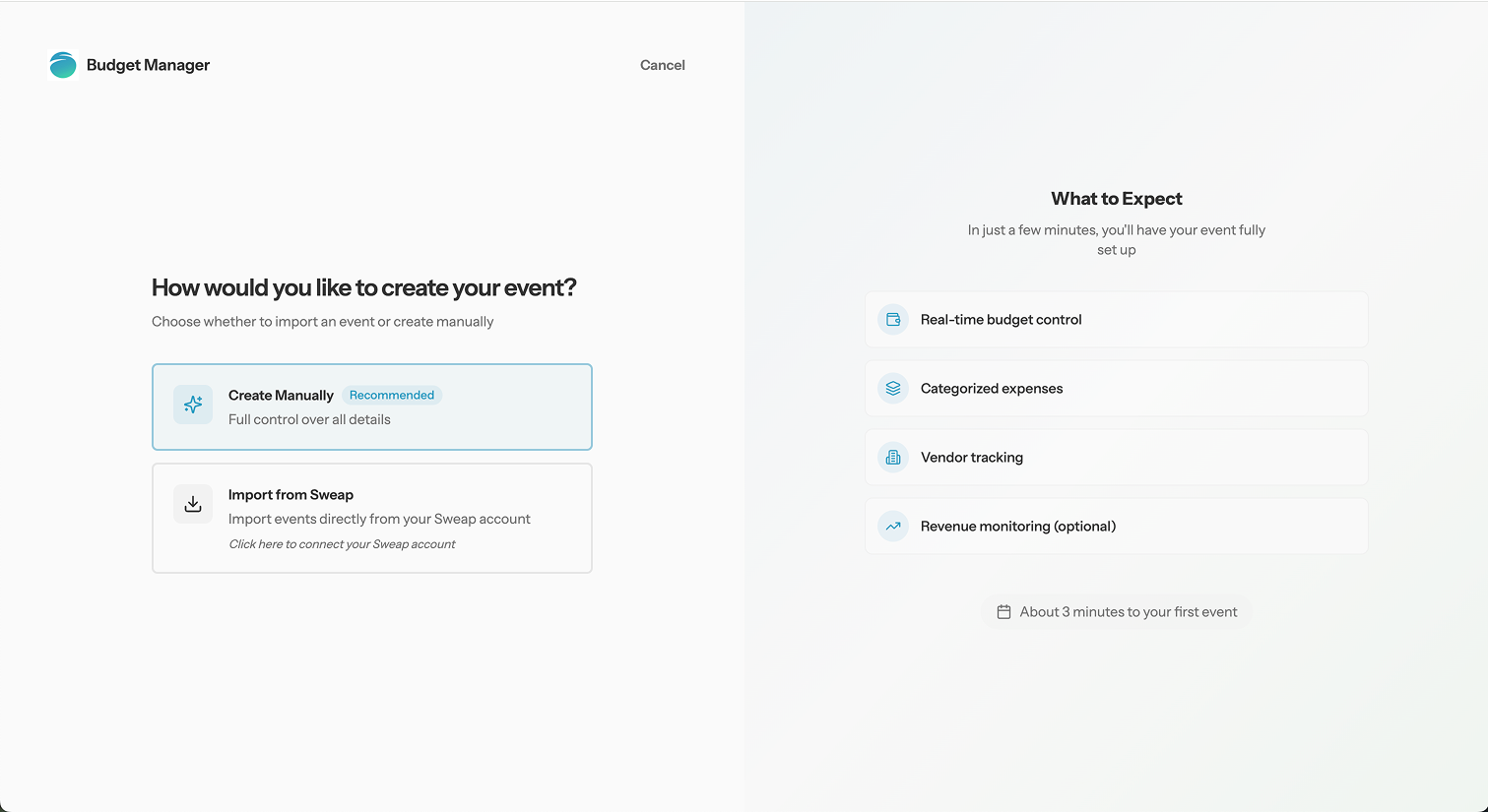
To create an event budget, click the ‘Create event’ button on your dashboard. In the first step, choose how you want to create your event:
Option 1 – Import from Sweap:
If your Sweap account is connected, you can select an existing event from Sweap. The event name, date, venue and number of guests will be automatically transferred. You then simply need to add the budget and categories.
Option 2 – Create manually:
Another option is to create the event yourself with all the details. You’ll find out how in the next step.
2. Create manually – step by step
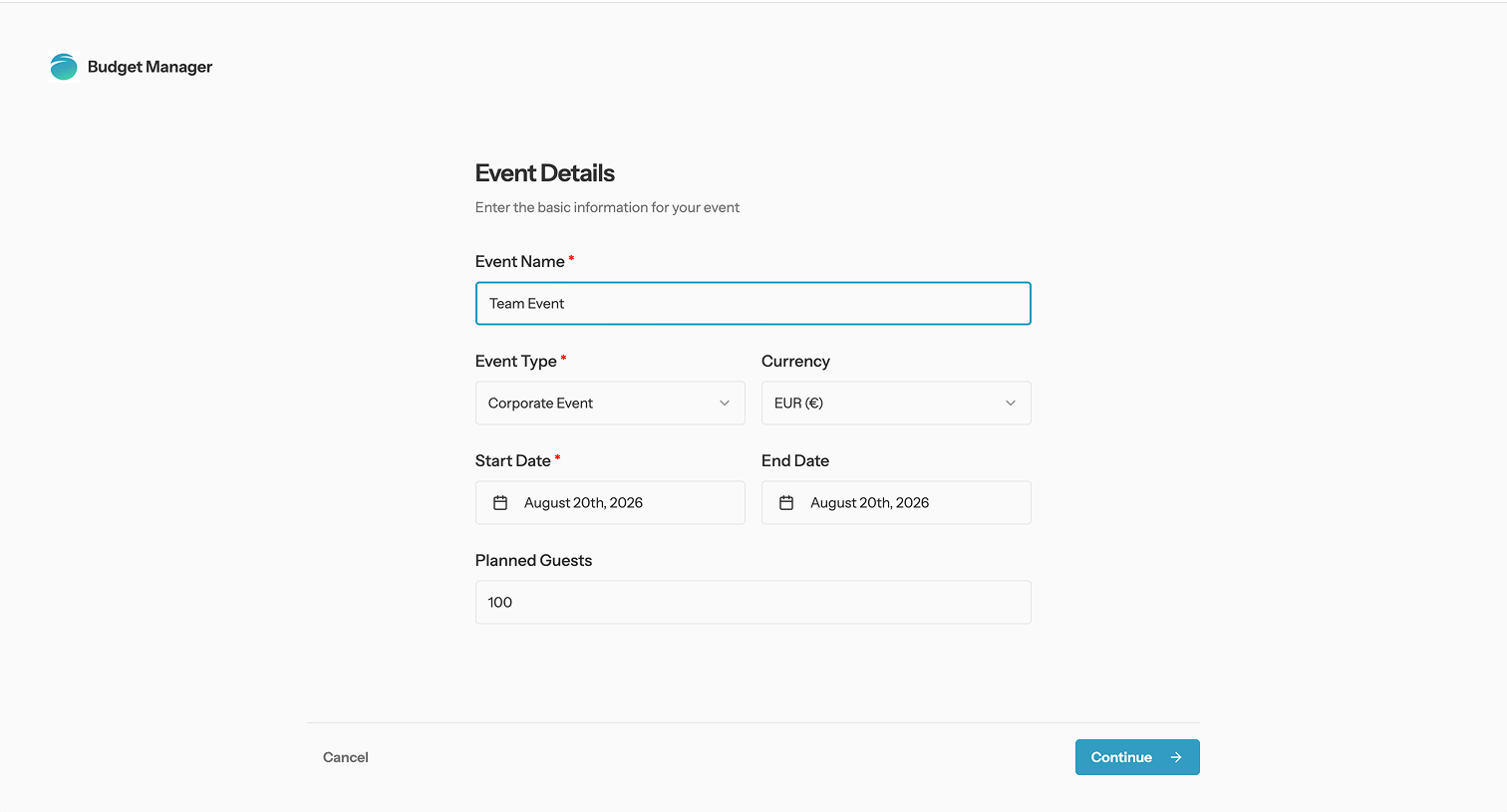
First, enter all the event details:
- Enter an event name
- Select the event type (e.g. conference, gala, workshop)
- Set the start and end dates
- Select the currency (EUR, USD, GBP, CHF)
- Enter the expected number of guests
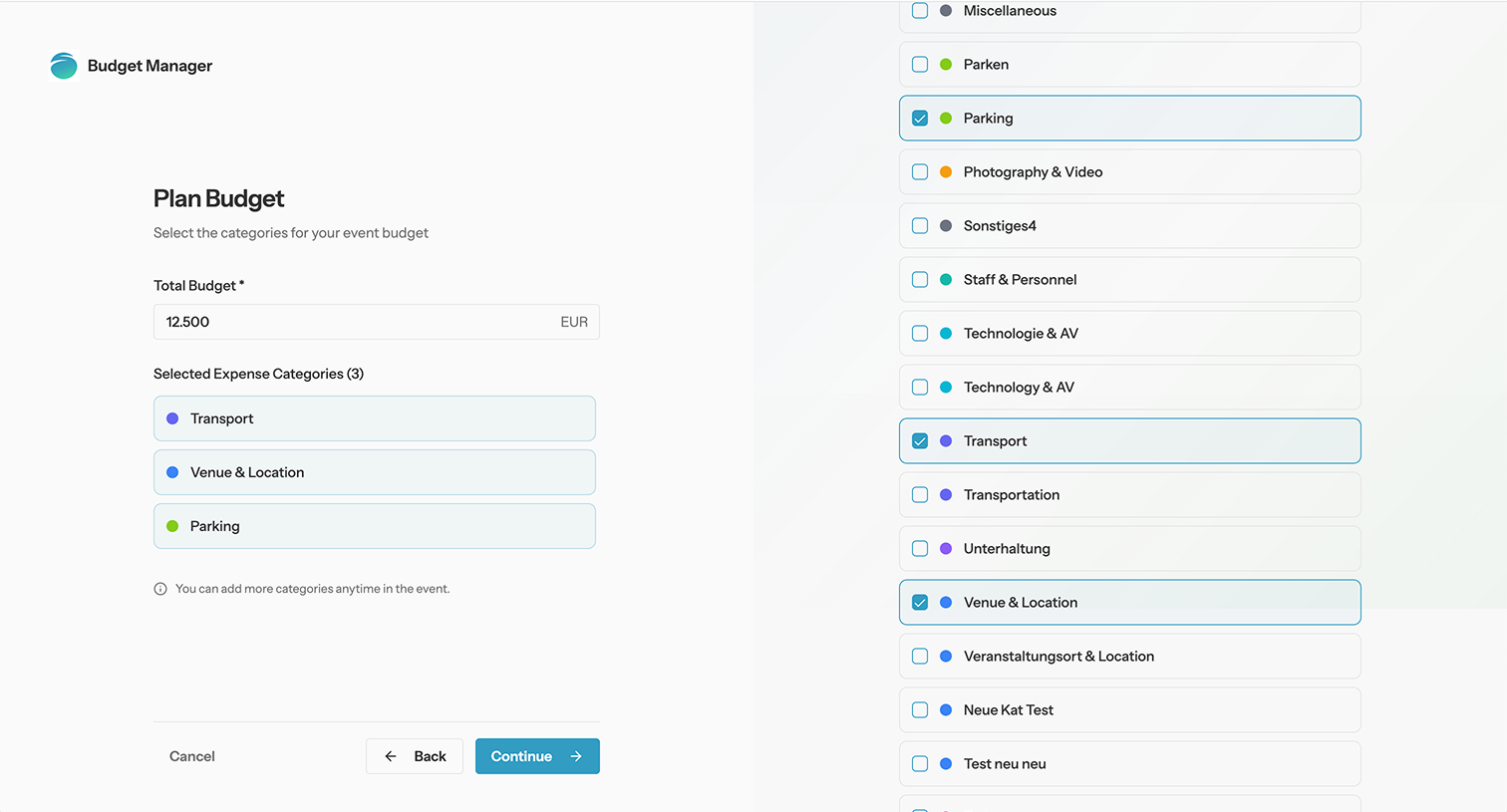
In the second step, enter details about your budget and budget categories:
- Enter your planned total budget
- Add expense categories (e.g. venue, transport, etc.)
- Categories can also be added later
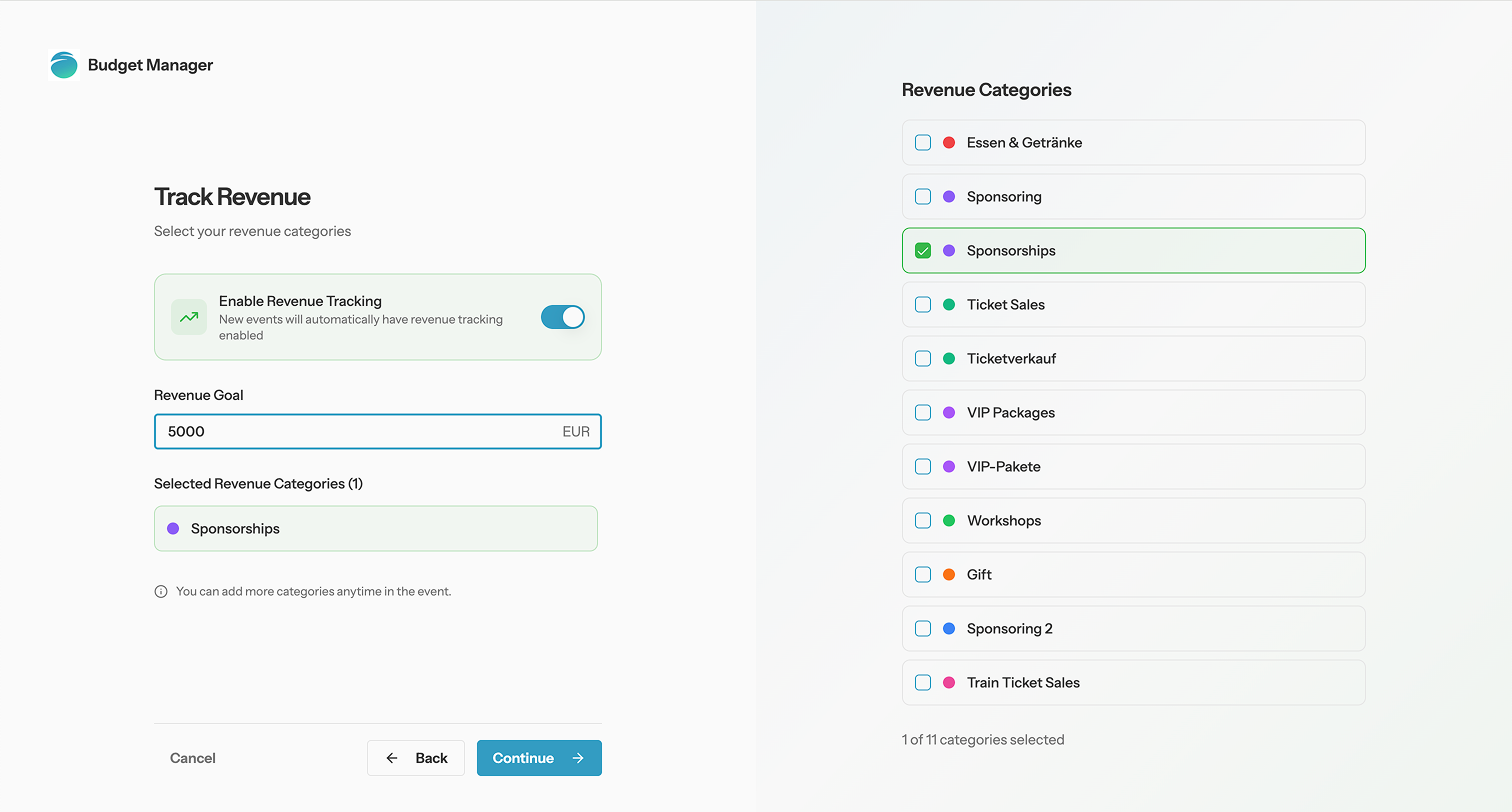
If required, you can enable income tracking in the third step:
- Enable income tracking using the slider
- Enter your planned revenue
- Add revenue categories (e.g. Catering, Sponsorship, etc.)
- Those categories can also be added later
In the final step, check all the details you have entered in the summary. To create the event, click on ‘Create event'.
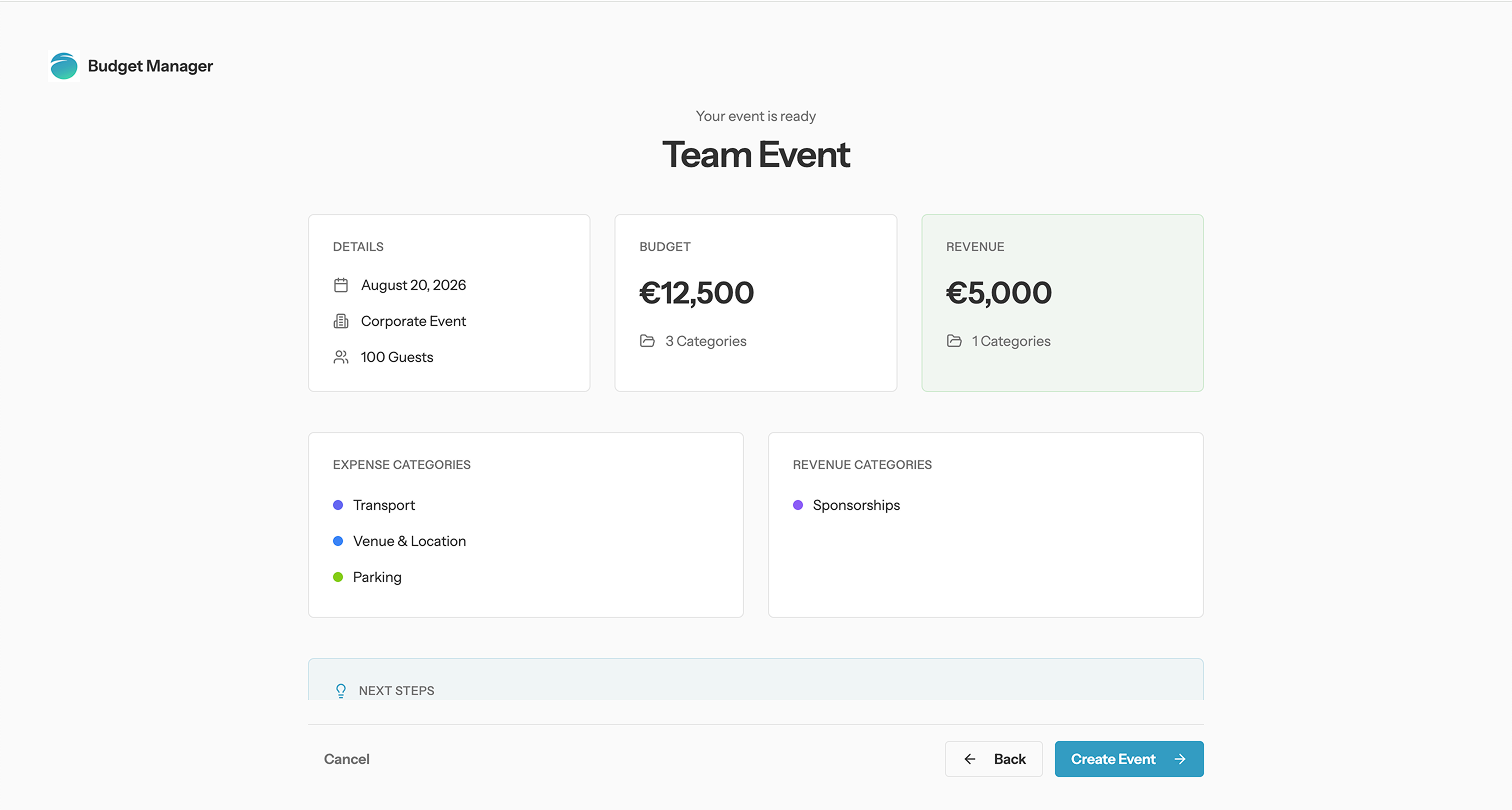
Your event budget has now been created. You will be automatically redirected to the event details page.
Find out in the next article how to add expenses and income to your event budget.