Table of Contents
- 1. Introduction: What is the European Accessibility Act (EAA)?
- 2. What does accessibility mean in the context of events?
- 3. Implementing accessibility with Sweap
- 4. How does Sweap support you in creating accessible content?
- 5. Best practices & recommendations for accessible event communication
- 6. Frequently asked questions (FAQ)
The European Accessibility Act (EAA) – Implementing Accessibility with Sweap
- 1. Introduction: What is the European Accessibility Act (EAA)?
- 2. What does accessibility mean in the context of events?
- 3. Implementing accessibility with Sweap
- 4. How does Sweap support you in creating accessible content?
- 5. Best practices & recommendations for accessible event communication
- 6. Frequently asked questions (FAQ)
1. Introduction: What is the European Accessibility Act (EAA)?
The European Accessibility Act (EAA) is an EU-wide directive to improve the accessibility of products and services. Its goal is to enable people with disabilities to participate equally in the digital society. In Germany, it is implemented through the Accessibility Strengthening Act (Barrierefreiheitsstärkungsgesetz, BFSG).
Background and purpose of the BFSG (DE) and the EAA (EU)
Derived from the fundamental rights of the EU, the EAA aims to make digital offerings such as websites, mobile applications and communication technologies accessible. The BFSG translates these requirements into national law – particularly for companies that offer digital services.
What applies from June 28, 2025?
From this date, many digital products and services must be accessible. For event managers, this means: registration pages, emails and other digital touchpoints must be designed to be accessible if the legal criteria apply.
Does the law also affect Sweap customers?
Sweap users are affected if they need to ensure accessible event communication – whether due to a legal obligation or to promote inclusion.
2. What does accessibility mean in the context of events?
Typical digital barriers in event communication
- Missing alternative texts for images
- Insufficient contrast
- Unclear navigation
- Forms that cannot be operated by keyboard
- Unstructured content (e.g. heading order)
Definition & requirements for digital content
The Web Content Accessibility Guidelines (WCAG) are internationally regarded as the authoritative standard for digital accessibility. They contain comprehensive recommendations for improving the accessibility of digital content.
The four core principles of the WCAG
Perceivable
All content must be presented in a way that all users can perceive it. This includes, among other things:
- Text alternatives for non-text content such as images or videos
- Sufficient contrast between text and background
- Captions and transcripts for audiovisual media
Operable
User interfaces should be easy for everyone to use:
- Clearly structured and consistent navigation
- Full operability via keyboard
- Clear labeling of interactive elements
Understandable
Both the content and its operation should be easy to understand:
- Use of clear, simple language
- Understandable wording for notices and error messages
Robust
Digital content must work reliably with different devices and assistive technologies:
- Use of standards-compliant HTML and appropriate ARIA attributes
- Ensuring compatibility with current and future technologies
3. Implementing accessibility with Sweap
Obligations & responsibility
With Sweap, you have already been able to create largely accessible event communication in the past. Sweap provides you with the necessary tools and features, but the actual implementation of accessible content is your responsibility.
Since the beginning of the year, our new, dynamic Email Builder has given you every option to work in full compliance with the BFSG. We have also recently released further technical enhancements in the Web Builder. This allows you to meet the legal requirements even more comprehensively and design your registration pages to be accessible according to current standards.
The old Email Wizard and the old Web Wizard have not been developed further for quite some time. They will therefore not receive any adjustments to fully support the BFSG requirements.
With the current Email Builder and Web Builder, you have all the tools at hand to make any adjustments that may still be necessary. If you are still using one of the old systems, we recommend switching to the new dynamic Web and Email Builders – that way you benefit not only from full BFSG support, but also from all further developments in website and email creation.
Overview: Which tools can be used to create accessible content?
Web Builder ✅
Web Wizard ❌
Email Builder ✅
Email Wizard ❌
4. How does Sweap support you in creating accessible content?
Registration pages (Web Builder)
Navigation and page structure
Navigation and content areas are clearly marked up so that they can be recognized by screen readers and keyboards.
Images and logos
Alternative texts can be entered for images (or aria-labels are used); logos are linked correctly or marked as purely decorative.
Address and directions
Addresses are marked up accessibly, non-functional links are replaced by meaningful buttons, and irrelevant images are ignored. This makes the directions accessible.
Countdowns and time-related information
Countdowns are given explanatory texts (e.g. “The event starts in 10 days”) so that their meaning is also clear via screen reader.
Forms, calendars and selection menus
Dropdown menus are designed so that they can be used via keyboard and screen reader; for calendar menus, text input is also possible.
Partner logos
Partner logos are given descriptive texts and clickable links if they point to external pages.
Emails (Email Builder)
When you create emails, the Email Builder automatically applies the following accessibility best practices when generating email HTML:
Role “presentation”
Design elements are automatically given the ARIA attribute role=“presentation”.
This helps screen readers distinguish between layout tables (purely visual design) and data tables (with meaningful content). Without this marking, screen readers could misinterpret design tables as structured data, which can confuse users of assistive technologies (AT).
Semantic elements
The Email Builder provides dedicated content blocks for headings and paragraphs to encourage a semantically meaningful structure in your email design.
By default, the Title content block is output as a semantic <h1> element. This defines the main heading of the email – especially important for screen readers and assistive technologies that use headings for navigation.
You can set further heading levels (<h2> and <h3>) in the properties of the Title content block. However, you should only use one <h1> per email to maintain a clear hierarchy.
The Paragraph content block uses the standard <p> tag so that body text is marked up correctly and can be interpreted well by assistive tools.
With these semantic elements, you create a more accessible reading experience.
ALT texts for images and icons
In the Email Builder, you can easily enter ALT texts for all images and icons in the side panel.
ALT texts provide a textual description of visual content so that screen readers can convey the purpose or content of an image in an understandable way.
Especially for non-decorative images – such as product photos, logos or functional icons – a meaningful ALT text is essential.
By default, images are given an empty ALT attribute (alt=““) – this is intentional, because it allows screen readers to recognize decorative images and ignore them.
To make your design accessible, you should review the ALT texts and adjust them individually.
Keyboard navigation
To make your designs accessible to people who use a keyboard or assistive technologies, full keyboard navigation is essential.
Even though the Email Builder is primarily intended for designing emails, you should consider how your design feels for recipients who navigate without a mouse.
The editor generates clean HTML that is easy to navigate with the keyboard.
Most email clients support the Tab key to jump between links, buttons and form fields, as well as Enter/Space to activate them.
Mobile responsiveness
The Email Builder makes sure that your emails look good on all devices – whether desktop, tablet or smartphone. This gives you a consistent and accessible user experience.
- Fluid layouts: The grid system adapts dynamically to the screen width so that content is always readable and correctly aligned.
- Mobile-friendly: Emails are optimized for small screens – text stays readable, images scale correctly and buttons are easy to use without zooming.
- Touch accessibility: Buttons and links are large enough to be used easily on touchscreens.
This keeps content usable without horizontal scrolling, and the responsive design supports users with visual impairments, especially when screen magnification or other assistive technologies are used.
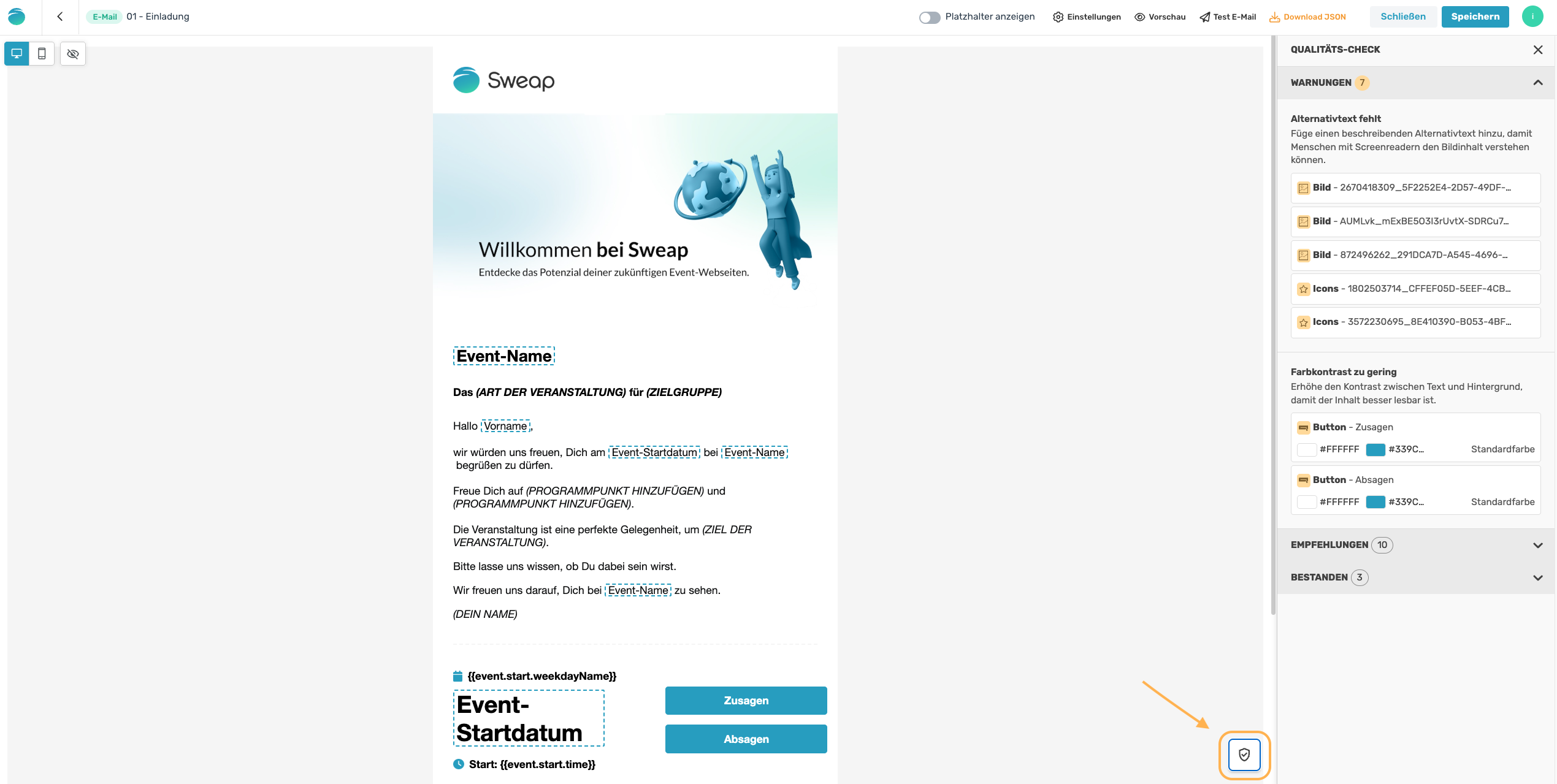
“Quality Check” feature/button
You can use this button to run an automatic quality check on your email at any time. This check automatically verifies alt text, contrast, and font sizes.
The overview is divided into 3 sections: Warnings, Recommendations and Passed.
Among other things, the check verifies whether images have alternative text, whether there is sufficient color contrast between the text and the background, whether the font size is large enough, and whether headings and the primary language of the email have been specified. The check also flags missing links and images that are too large. This allows you to identify areas where your email is not yet accessible before sending it.
5. Best practices & recommendations for accessible event communication
Tools for accessibility testing
Accessibility testing helps you identify accessibility issues early on. A combination of automated tools and manual testing methods ensures that the content you create meets the BFSG standards.
Automated tools
These tools scan your website for typical accessibility issues. They save time and are ideal for a first overview – but they do not replace a thorough manual review.
- axe (Deque Systems): A handy browser add-on that analyzes web pages and provides detailed information on potential barriers.
- WAVE (WebAIM): Highlights accessibility errors directly on the page, making analysis easier.
- Google Lighthouse: Integrated into Chrome DevTools, it provides an accessibility score as well as recommendations for improvement.
While there isn’t quite as specialized a tool landscape for testing emails for accessibility as there is for websites, axe, for example, is ideal for testing emails in a web client (e.g. Outlook preview).
Manual testing methods
Not all issues can be detected automatically – manual tests provide additional certainty.
- Keyboard navigation: Check whether your content can be fully operated using the keyboard – a key aspect of accessibility.
- Screen reader use: Use screen reader software to understand the user experience of people with visual impairments (for example NVDA (Windows) or VoiceOver (macOS)).
- Check color contrast: Tools such as WebAIM’s Contrast Checker help you make sure that text stands out sufficiently from the background.
6. Frequently asked questions (FAQ)
Is Sweap directly affected by the law?
No, Sweap itself is not directly affected by the BFSG, as Sweap is a tool provider. The law is primarily aimed at companies that provide digital services or products to end users. However, we support our customers with features and best practices to help them meet the legal requirements.
Is my company affected by the BFSG?
The BFSG generally applies to companies that offer digital services to the public – e.g. in e-commerce, for booking processes or for events. Whether your company is affected depends on your specific business model and how your digital touchpoints are designed. If in doubt, we recommend having this reviewed by a legal advisor.
Does every email have to be accessible?
Not every single email automatically has to be accessible. What matters is whether it is part of a service that falls under the BFSG – such as registration confirmations, event reminders or access links. For these key communication touchpoints, we strongly recommend ensuring accessibility.
How can I test my pages or emails for accessibility?
You can use a combination of automated tools and manual testing methods. Automated tests such as axe, WAVE or Google Lighthouse provide initial indications of barriers. In addition, you should check keyboard navigation and screen reader compatibility. You can find details and tool tips in the section “Best practices & recommendations”.
Can I continue to use existing templates?
Only to a limited extent. Templates created with the old Email Wizard or Web Wizard may not fully meet the BFSG requirements. For future-proof and accessible design, we strongly recommend switching to the new builder tools (Web Builder and Email Builder). There, you have access to accessible design features and structured content blocks.
What happens if I don’t implement accessibility?
The BFSG provides for sanctions in the event of violations – especially if a company fails to provide accessible content despite being obliged to do so. In addition, a lack of accessibility can lead to reputational damage and disadvantage users. Above all, however, a lack of accessibility means exclusion. With accessible event communication, you actively promote inclusion.